How to Scrape Images from a Website (No Code)
Intro
If you want to learn how to scrape images from a website, extract product images, or even scrape images from multiple websites at once with No Code Needed, this guide will walk you through everything you need to know.
The entire process is simple:
- describe what you want to scrape;
- paste the URLs;
- and Parsera does the rest (No Code Needed)
🐾 Let’s go through all the scenarios step-by-step:
🌄 Scenario #1: How to Scrape Images From a Website (No Code)
To scrape images from a website, all you need is a clear prompt!
You can write something simple like: “scrape images”. But this might return every image on the page.
To get only the images you actually need, make your prompt more specific:
Examples:
- “scrape images of the product on this page”
- “scrape images of the sneakers product on this page”
- “scrape images of the perfume product on the e-commerce page”
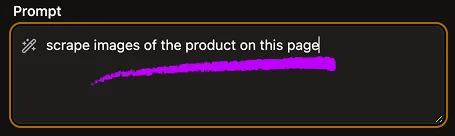
🦶 Step-by-step Guide of how to Scrape Images From a Website (No Code):
- Enter the URLs.
- Write your prompt (e.g., “scrape images of watches from this page”).
- Click
Extract.
The more specific your prompt, the cleaner and more accurate your scraped images will be!
🌉 Scenario #2: How to Scrape Images From Multiple Websites (No Code)
If you want to scrape images from multiple websites, Parsera has a feature designed exactly for that. Here’s how to scrape images from multiple websites in one go:
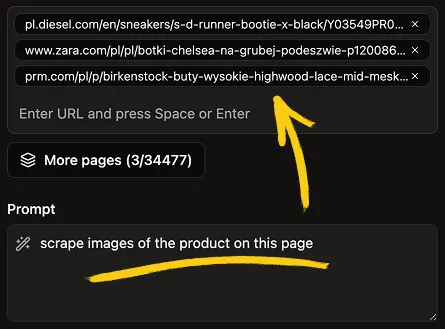
🦶 Step-by-step Guide of how to Scrape Images From Multiple Websites:
- Paste all your URLs (up to 3,000 URLs at once).
- Write your prompt (e.g., “scrape images of e-commerce products from these pages”).
- Run the scraper
- Check the results and filter bas
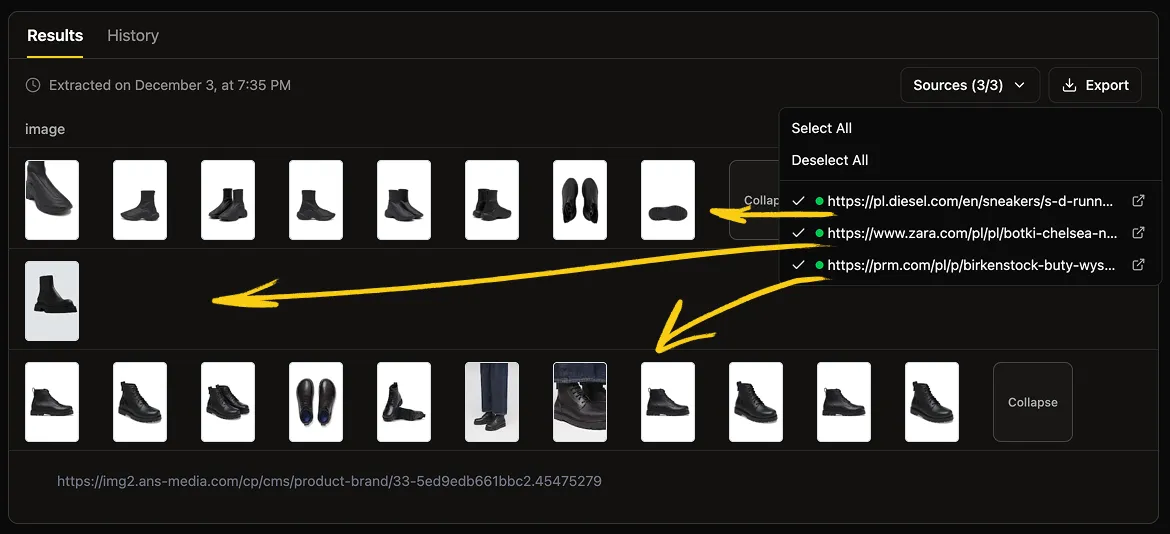
For example, you can scrape images from different websites such as:
- Diesel
- Adidas
- Zara
- and more ... and all in a single request.
This is perfect for competitor research, content collection, or e-commerce monitoring.
🌃 Scenario #3: How to Scrape an E-Commerce Website (Images + Product Data)
Most real-world scraping tasks involve more than just images. If you’re scraping an e-commerce product page, you probably want: product name, price, description, discount and more
🦶 Step-by-step Guide of how to Scrape Images plus additional Product Info:
- List all data fields in your prompt (or create columns for each field).
- Add a column prompt to transform or format each field if needed (e.g. "return price without a currency symbol").
- Run the scraper and get a clean table with all product data.
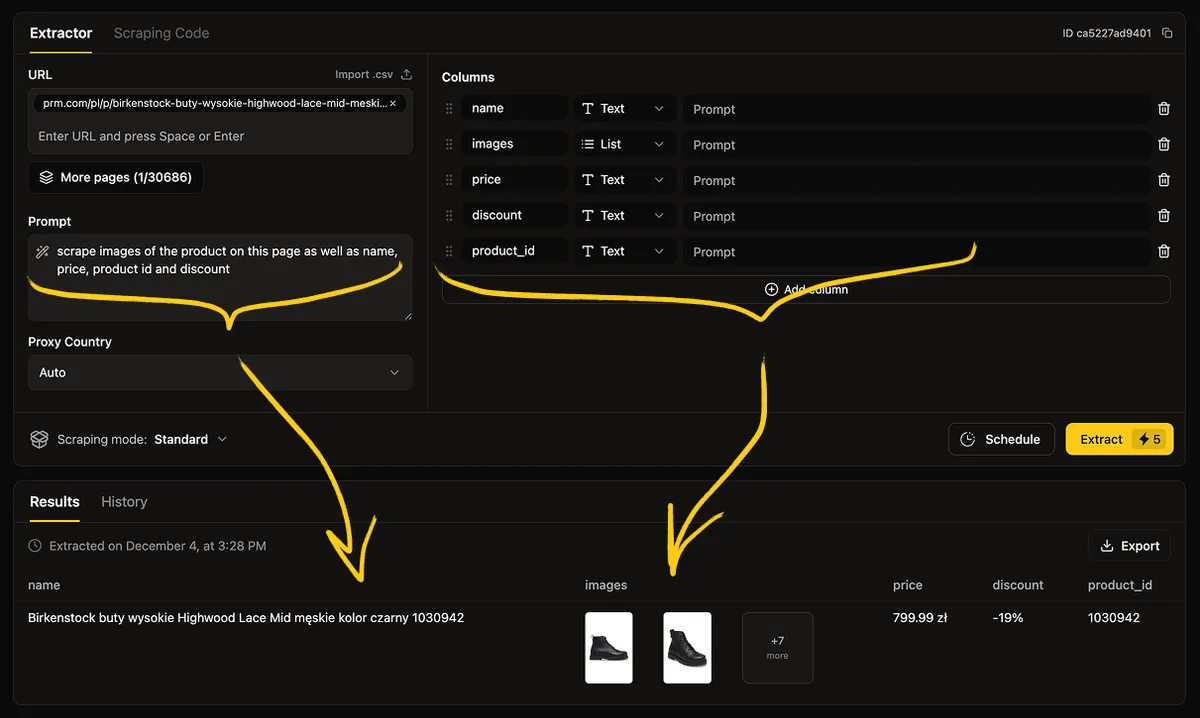
Keep in mind you can manipulate data in the output, making scraping more accurate by prompting columns directly (see the screenshot below)
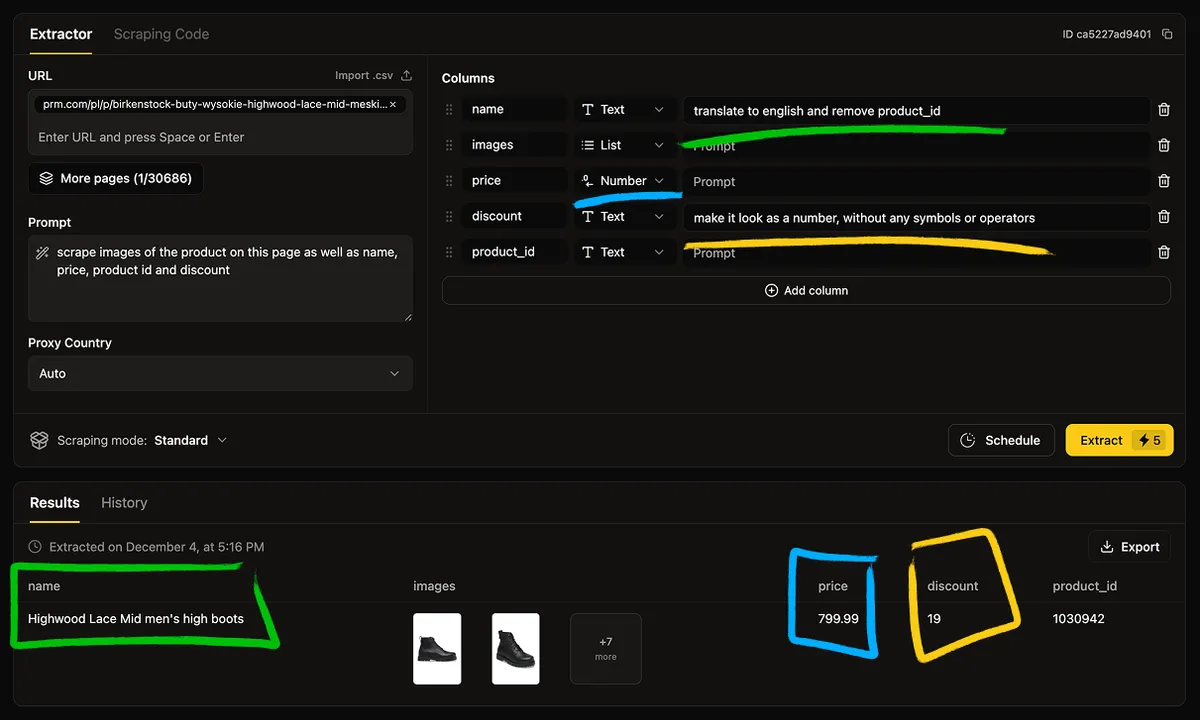
PS: This works for any e-commerce store, and not only e-commerce and not only store 😂
💝 BONUS: How to Scrape Images From All Pages of a Website in One Click (No Code)
If you need to scrape images from many pages inside the same website, you don’t have to copy and paste URLs manually. Parsera’s Page Catalog feature lets you browse the entire website structure:
🦶 Step by Step Guide Scrape Images From All Pages in One Click:
- Paste any URL from the website.
- Click “More Pages” to open the Website Page Catalog.
- Select specific pages or entire categories.
- Scrape images from a website catalog of pages and any other product information you need.
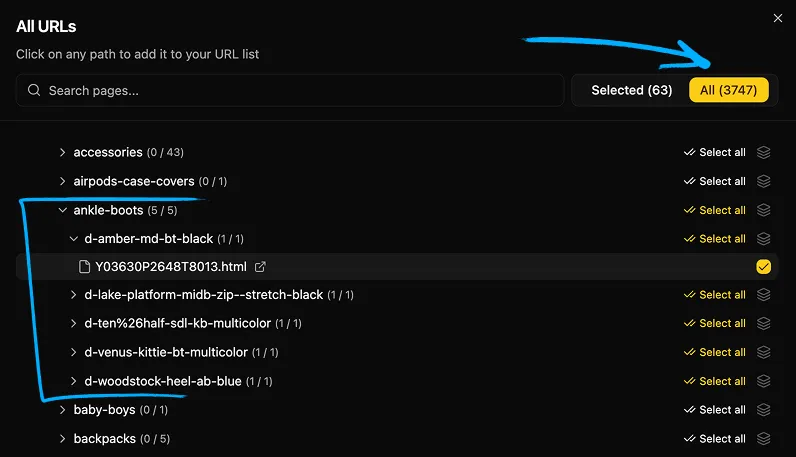
This is perfect for scraping entire e-commerce catalogs, blog archives, or category sections.
🌻 FAQ:
-
How do I scrape images from a website? Answer: Use a clear prompt like “scrape images of the product on this page”, paste the URL, and run the scraper.
-
Can I scrape images from multiple websites at once? Answer: Yes, Parsera allows scraping thousands of URLs in a single request.
-
How to scrape image from website with product data? Answer: Add all required fields (e.g., title, price, description) directly in your prompt or columns structure.
-
Can I scrape images from all pages of a website automatically? Answer: Yes, use the Page Catalog feature to load the entire website’s page tree and select pages you want.
-
Do I need to have coding skills to scrape images from a website? Answer: No. Parsera is fully no-code. You only need a URL and a natural language prompt.
-
Can I schedule the scraping of images I want? Answer: Yes, use our “Schedule feature on Parsera” after you made sure that the initial scrape works well for you.
-
Is it possible to generate my own scraper and re-use it on similar pages? Answer: Yes, use our “Scraping Code feature on Parsera” and generate code to scrape images and any other fields on scale.
➡️ Final Thoughts
Scraping images from websites, whether from one URL, dozens of websites, or entire e-commerce catalogs is extremely easy with Parsera - just describe what you want, paste your URLs, and get data.
🚀 Quick Summary
How to scrape images from a website:
- Paste the URL
- Add a specific prompt like: “scrape images of the product on this page”
- Run the scraper
How to scrape images from multiple websites:
- Paste up to 3,000 URLs
- Use a prompt like: “scrape product images from these pages”
- Run the scraper
To scrape e-commerce product images + data:
- Add all fields to the prompt (title, price, description, etc.)
- Or create separate columns
- Run the scrape
To scrape images from all pages of a website:
- Copy & Paste any random URL from a website
- open Page Catalog of that website
- Select pages
- Scrape everything at once